


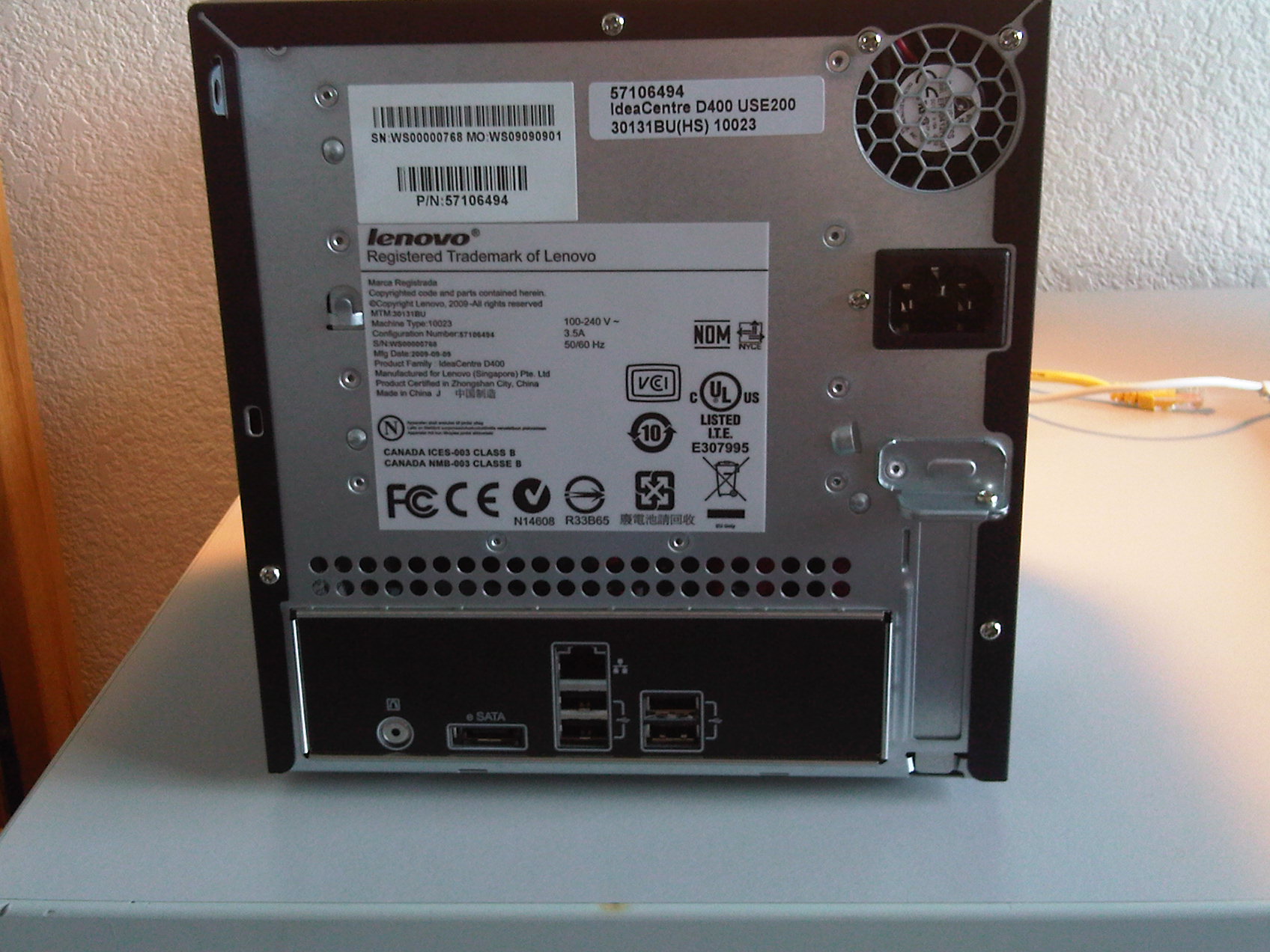








After playing with with the Lenovo IdeaCentre D400, I think it’s time for an in-depth review. Before I go into the review, I’d like to answer a couple questions raised in my previous post. (Click here to read my first impressions.)
1. Is there warranty coverage if the user upgrades the amount of RAM in their server? The answer to this is no. While I understand why in some respects, I don’t like how there is not an option to either purchase an upgrade at the time the server is built, or an in-warranty option. HP does this (see here for details), I’m not sure about other vendors, but I think if one can do it, what’s preventing others from doing the same?
2. I was curious as to whether or not there was a product page on the Lenovo website as I was having a hard time finding it. Lenovo has sent me the link, and you can click here to go directly to the product page on their website.
3. I asked Lenovo about their feature set and am under the impression that they IdeaCenter D400 is designed to be a no-frills server. For advanced functionality like Photo Sharing, etc., you can go to WHSPlus (http://www.whsplus.com) and find add-ins for the server. In talking to Lenovo, they did drop a hint that sometime next year there will be an update to their offering. I look forward to what it is!
If anyone has any further questions, please let me know on Twitter (@tomontech) or e-mail (tom at tomontech dot com).
Now on with the in-depth review!
Installation:
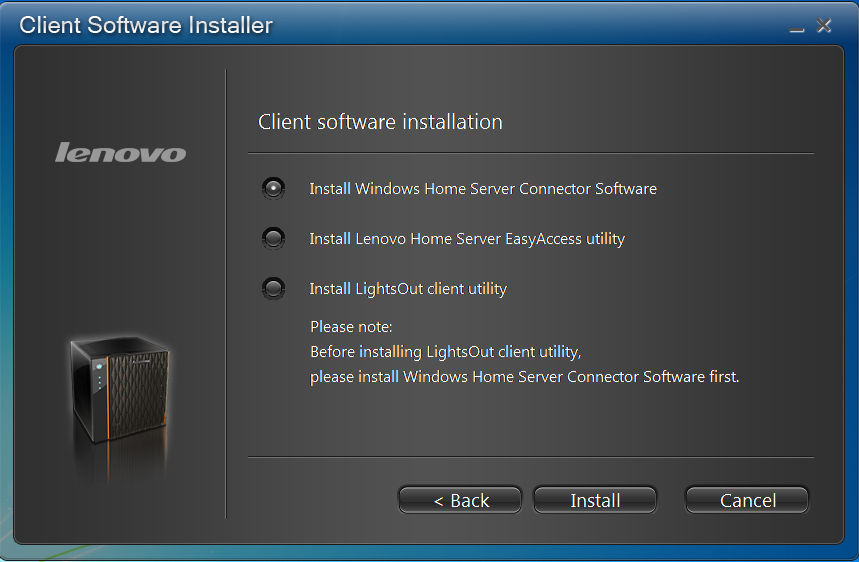
Installation and configuration of the IdeaCentre D400 is fairly straight forward. Put in the Client Connector Software disk, let the installer download the software from the server, answer some questions and you’re all set and ready to go. However, there is one thing that I do not like about Lenovo’s installer. There are three items on the disk (Home Server Connector, LightsOut Client, and Lenovo’s EasyAccess software). Lenovo does not make it clear on the menu of the installer that to install everything, they each have to be installed separately. I think some clarification on the menu would go along way. Either that, or provide some automation where the user selects which of the three to install, and then they are installed in order automatically without further intervention by a user.
Ease of Use:
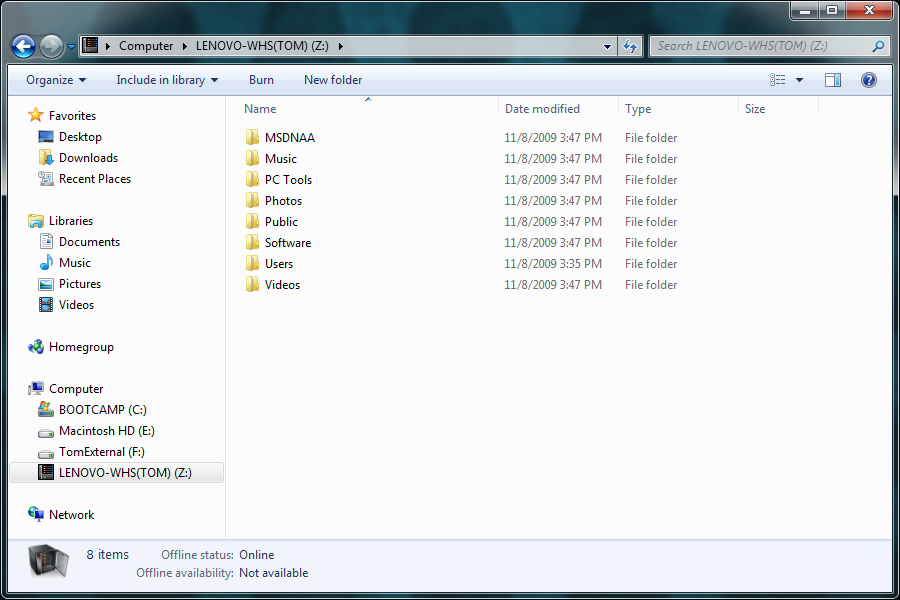
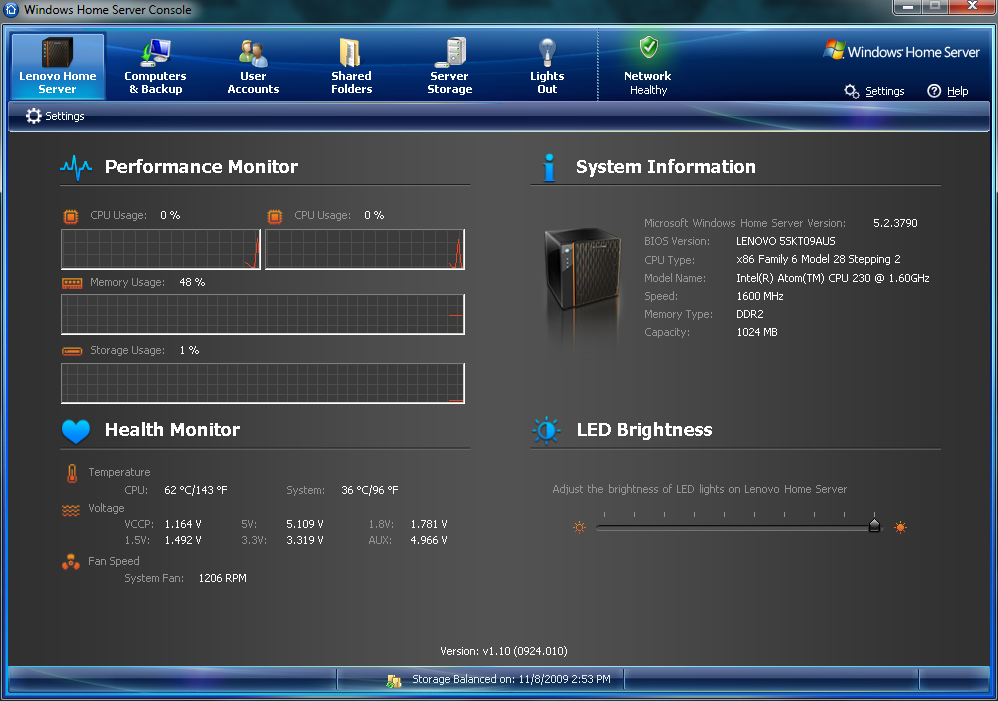
Like all of the Home Server offerings out there that use Windows Home Server, this one is no exception to how easy it is to use. Because Windows Home Server is designed to be as consumer friendly as possible, ease of use is very important. Lenovo does a great job of making the server easy to use, with the only exception being the confusion on the software install menu. There is a piece of software that Lenovo includes called EasyAccess, and this software automatically makes the shares on the server appear in your Computer window. Their tab they add to the Windows Home Server Console is very well thought out, and presents important information very clearly.
Server Recovery:
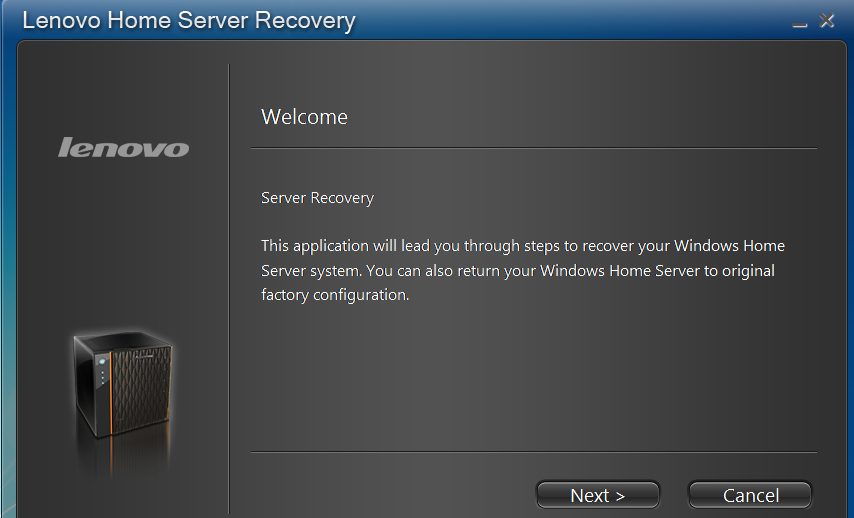
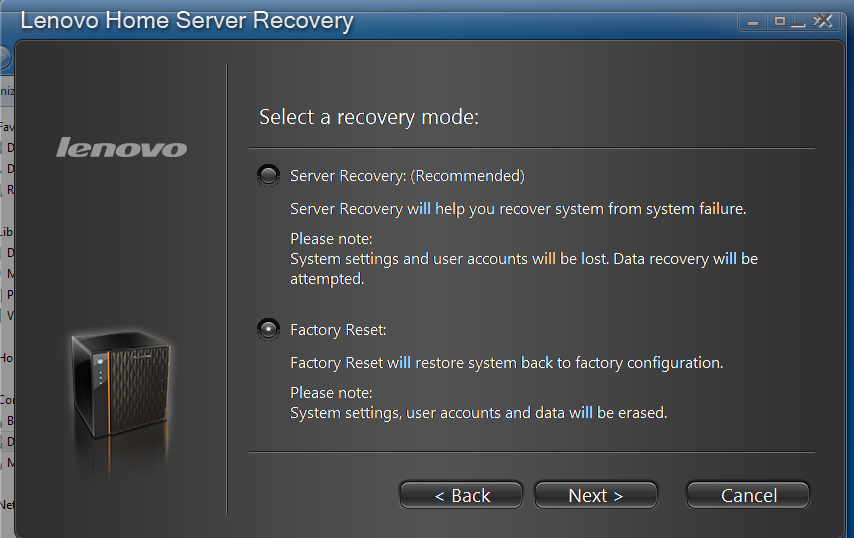
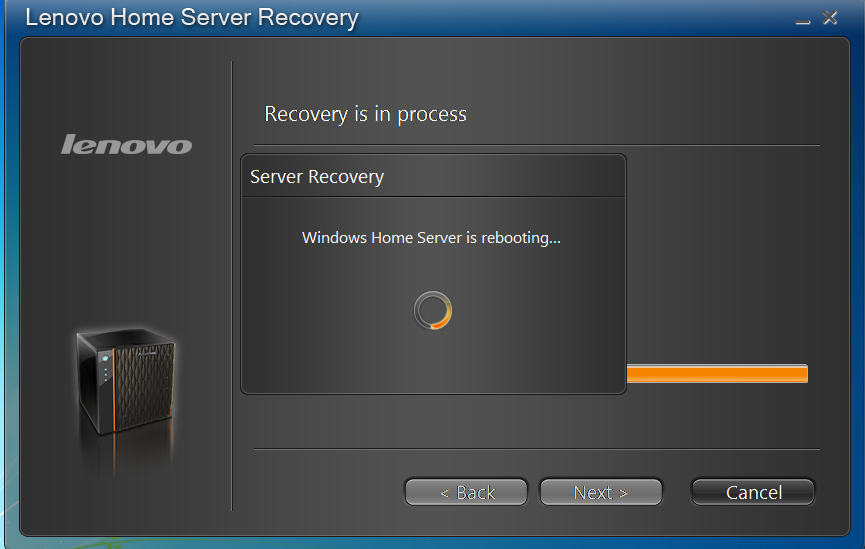
In the event that something happens to the server and a reinstallation of the server software is needed, Lenovo provides a DVD that will perform the recovery. The recovery software is wizard driven, and is very straightforward. Recovery does take some time, depending on network configuration, and other factors, so be prepared to go for a walk, drink some coffee, read a book, or watch paint dry.
Price:
I’m in love with the price point of the IdeaCentre D400. $499 will get you the 1TB model and $599 will get you the 2TB model. With the holiday season rolling around, there may be some deals to be had on the IdeaCentre D400.
Overall:
Lenovo has a very strong offering here with the IdeaCentre D400. I like that it does not come preloaded with tons of potentially useless extras, and that documentation provided is very easy to follow. While I’m biased towards the design of the HP MediaSmart Server (been an owner since they were first produced), the design of the IdeaCentre D400 has definitely grown on me. I definitely think that the IdeaCentre can be a great contender in the Home Server space, and I think that now that we have many vendors selling Home Servers we will see some great things in the future.
On a personal note, I’d like to thank the fine folks at Lenovo for providing the IdeaCentre D400 for review. Thank you Lenovo!
Beginning with the introduction of Office 2010, Microsoft is introducing a new delivery mechanism for Office, called Click-to-Run. This technology enables a user to only download parts of the software that the need, rather then install everything at once.
As a part of the release of the Office 2010 Beta, you can download and try out Office 2010 Home and Business edition using the Click-to-Run technology. Click here to download Office 2010 Home and Business Edition.
The way that Click-to-Run works is that a user downloads a small file (2MB in size). This file contains information about the product to be installed, and creates shortcuts, sets file associations, etc. When an application in the suite is launched, it downloads certain parts of the software to allow them to be functional, and then downloads new features the first time they are launched.
Below are some screenshots of the Click-to-Run experience.
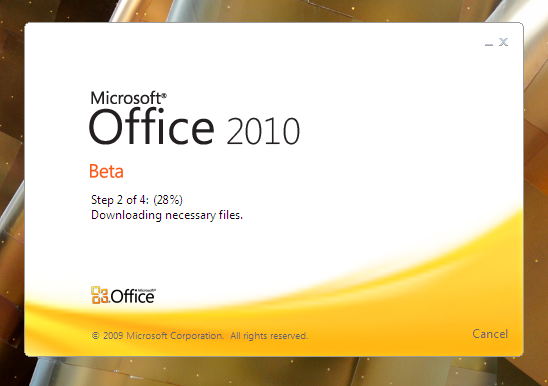

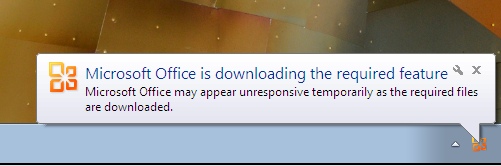
If you want to try out Google Chrome OS, I’ve compiled a build, code is current as of Friday the 20th. To test out Chrome OS, you’ll need either one of the VMware products (Player, Workstation, Server) or Sun VirtualBox. I recommend Sun VirtualBox, as I have not had much luck with getting networking to work with VMware Workstation on my PC or Fusion on my Mac.
You can download the build by clicking here. (766.8MB VMDK file, Right-Click and use Save Target / Link as to download)
A couple tips:
Below are directions on how to configure Sun VirtualBox (Downloadable from http://www.virtualbox.org)
1. Open Sun VirtualBox, and click New

2. Click Next

3. Give a name to the Virtual Machine, and Select Linux for the Operating System, and Ubuntu for the Version, then click Next

4. Drag the slider to 512 MB, and click Next

5. Select Use and Existing Virtual Disk, and click the folder symbol to the right of the drop-down menu

6. Click Add, and then browse to the location that you saved the Chrome OS VMDK file.

7. After reviewing the details, and making sure everything is correct, then click Finish.

Once you’ve created the virtual machine, you can then click the start button and begin to play with Chrome OS.
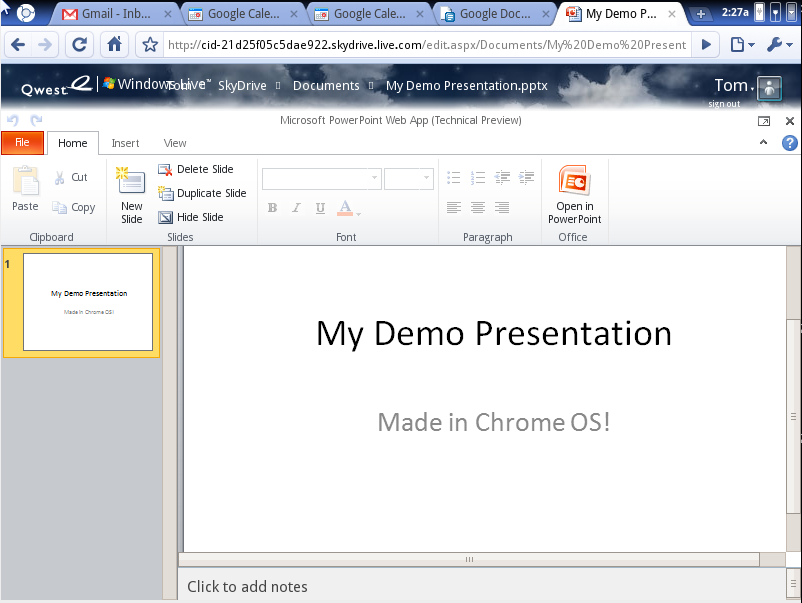
On Thursday, November 19th, Google opened up Chrome OS to the world. Currently there are no official downloads, however, Tom On Tech has downloaded and compiled the source and produced a Virtual Disk file for use with either VMWare or VirtualBox (personal preference for Chrome OS).
If you’d like to try out Chromium OS*, click here to download. (766.8MB download – use right-click Save Link As to save the file)
A review will posted soon, but for now, here are some early screenshots from Chrome OS for your enjoyment.
*Official builds are called Chrome OS, unofficial or dev builds are called Chromium OS.


Yesterday at the 2009 Professional Developers Conference (PDC), Microsoft announced the release of the beta of Microsoft Office 2010.

All are available for download at http://www.microsoft.com/office/2010
Office 2010 brings a refreshed and consistent look and feel across all applications. Also new are refreshed icons for the Office 2010 suite.


I’ve been playing with the beta for a few days now, and I’ll be providing my thoughts as well as reviewing each component of the Office 2010 suite right here on Tom on Tech.
I encourage everybody to download and try out the new Office 2010 beta, and if you have any questions or thoughts, please feel free to email me (tom@removethis.tomontech.com), send me comments on Twitter (@tomontech), or leave comments here.

Thanks to our fine friends at Lenovo, Tom on Tech has been able to get an IdeaCentre D400 for review. Over the next few weeks, I’ll be providing my thoughts as I use the server in my everyday computing. To provide some background on the IdeaCentre D400, here are some specs and other details about the server.
Lenovo ships two versions of the D400. Here’s how it breaks out.
| Model Number | Processor | Processor Speed | Memory | Hard Drive |
| 3013-1AU | Intel Atom 230 | 1.6 GHz | 1GB | 1TB (single drive) |
| 3013-1BU | Intel Atom 230 | 1.6 GHz | 1GB | 2TB (2 1TB drives) |
As you can see, both models are the same, with the only exception being the total storage space.
From the information that has been provided to me, the server does support 2GB of RAM maximum, however, I’ve read in the manual that opening the unit will void the warranty. I’ve asked Lenovo about this, and I will let everybody know what I am told.
With the IdeaCentre D400, setup was very straight forward. In the box was a quick setup poster, which not only included hardware setup, but initial server software setup (with screenshots!). While the screenshots on the poster are a bit small, I do like that they are included on the poster.
After installing the Windows Home Server Connector, Lenovo provides a utility that they call EasyAccess. After installing the utility, items are placed on the right-click menu that will allow you to right click on a file, and move that file to a shared folder on your Windows Home Server.
To see what, if any, extra software was preloaded on the IdeaCentre D400, I launched the Console, and was pleasantly surprised at what I saw. The only things that are preloaded are Lights-Out (from MVP Martin Rothschink), Lenovo’s custom tab, and FireFly Media Server (designed to stream music from the server to iTunes).
So far I’m impressed with Lenovo’s offering. I’ll be testing this server for awhile, so look for more hands-on information over the course of the next few weeks.
 Tom on Tech
